Updated 2026-11-15

Free · batch · 0 uploads

Audio to MP3 Converter

A free audio to MP3 converter that works inside your browser. Drop in M4A, WAV, FLAC, OGG, Opus or even a video, pick 128 or 192 kbps (256 / 320 kbps with Pro), and download each MP3 — or, with Pro, the whole batch as one ZIP. Nothing is uploaded.

  • No signup
  • No watermark
  • 3 files per batch · Pro 100
Audio to MP3 Converter
Runs locally · 0 uploads
Convert to
Try a sample:

Converted on your device by your browser's own decoder and a background encoder — nothing is uploaded.

  • 0 uploadsFiles are decoded and encoded on your device
  • 128–320 kbpsConstant bitrate, 44.1 or 48 kHz — 256 / 320 with Pro
  • 3 filesPer batch, 50 MB each — Pro: 100 × 500 MB + ZIP
  • 3 outputsMP3, WAV or FLAC from the same queue

Examples

Real files from this audio to MP3 converter

Every MP3 below came out of the tool on this page. Play it, check the size, then load the same sample with the same settings in one click.

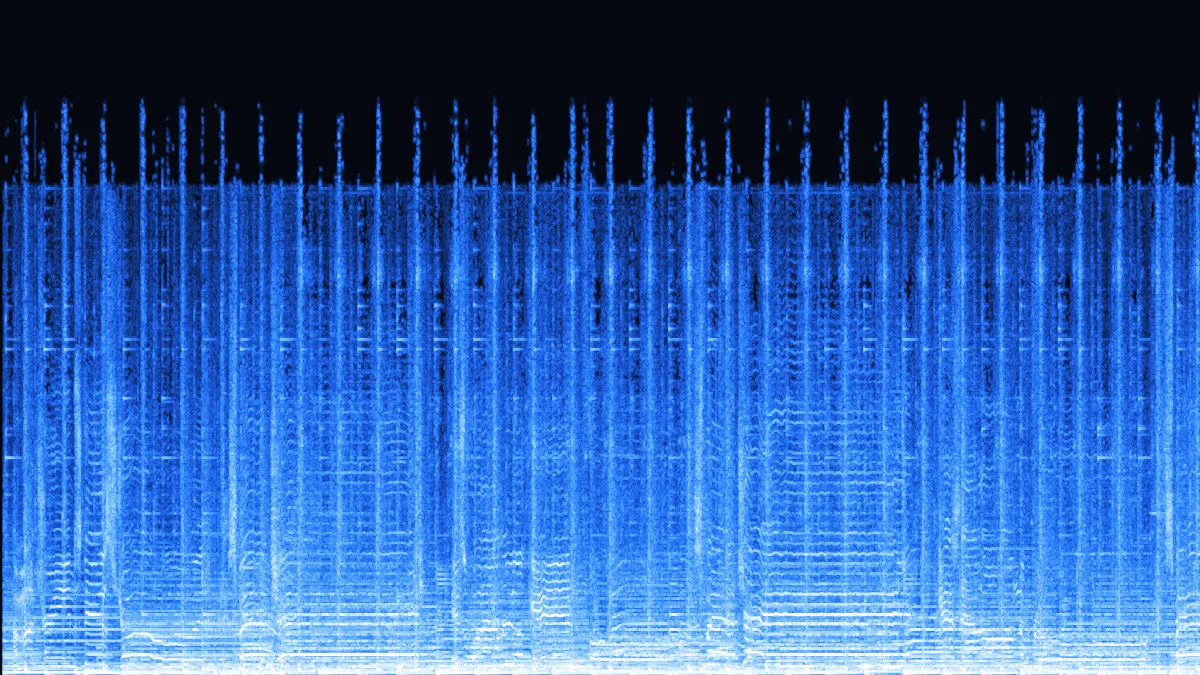
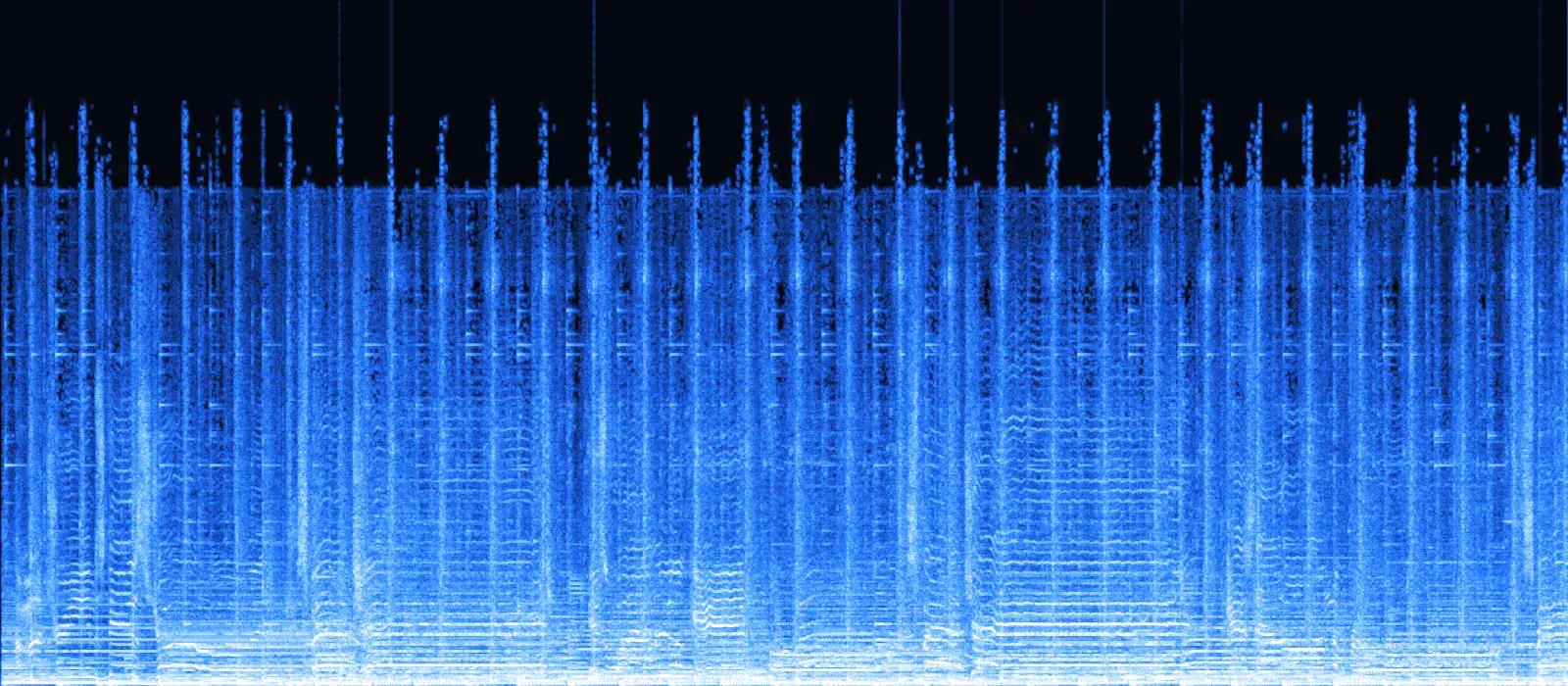
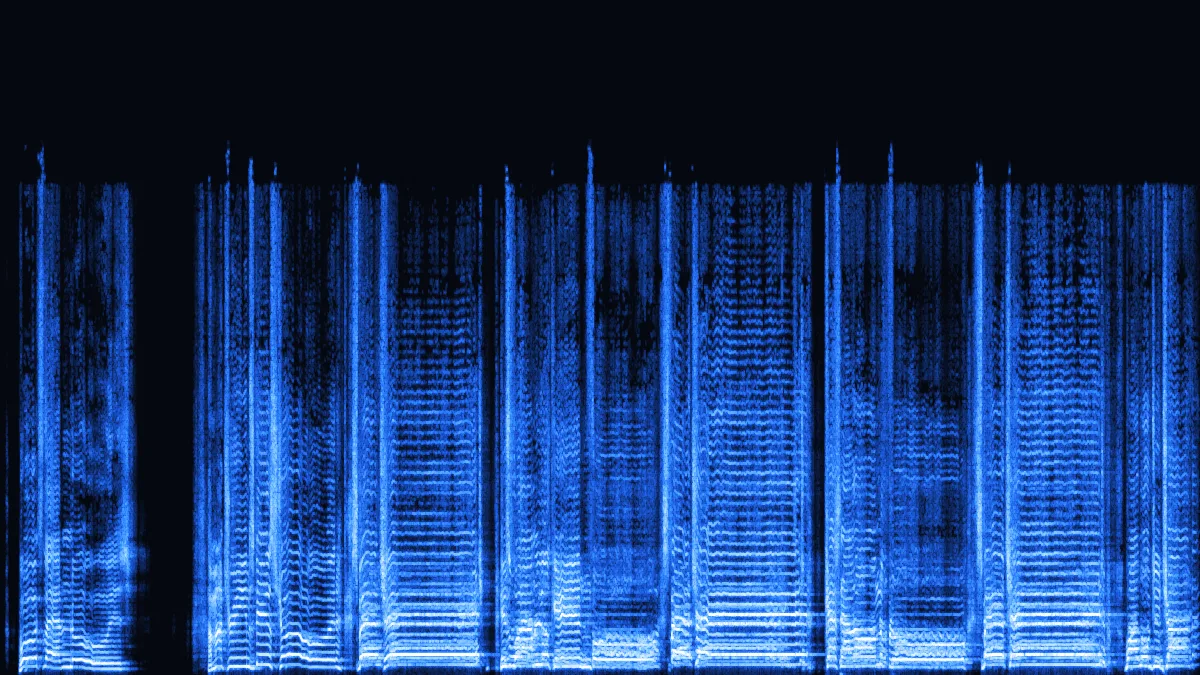
Spectrogram of the FLAC song, energy reaching about 18.5 kHz
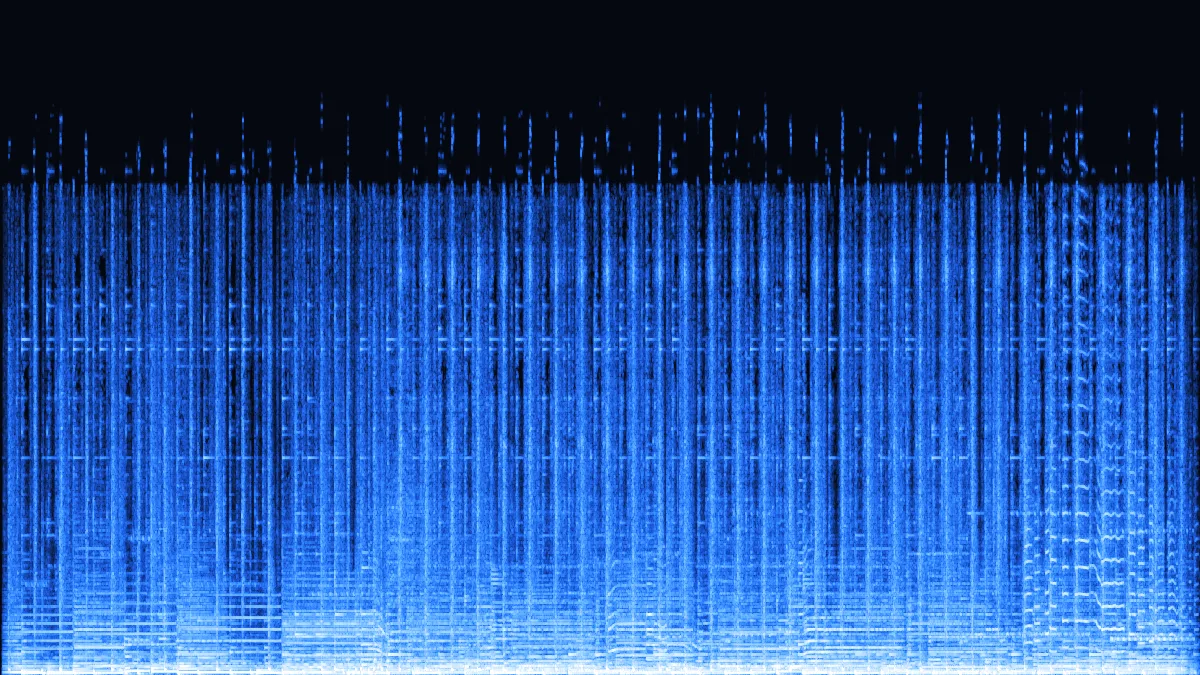
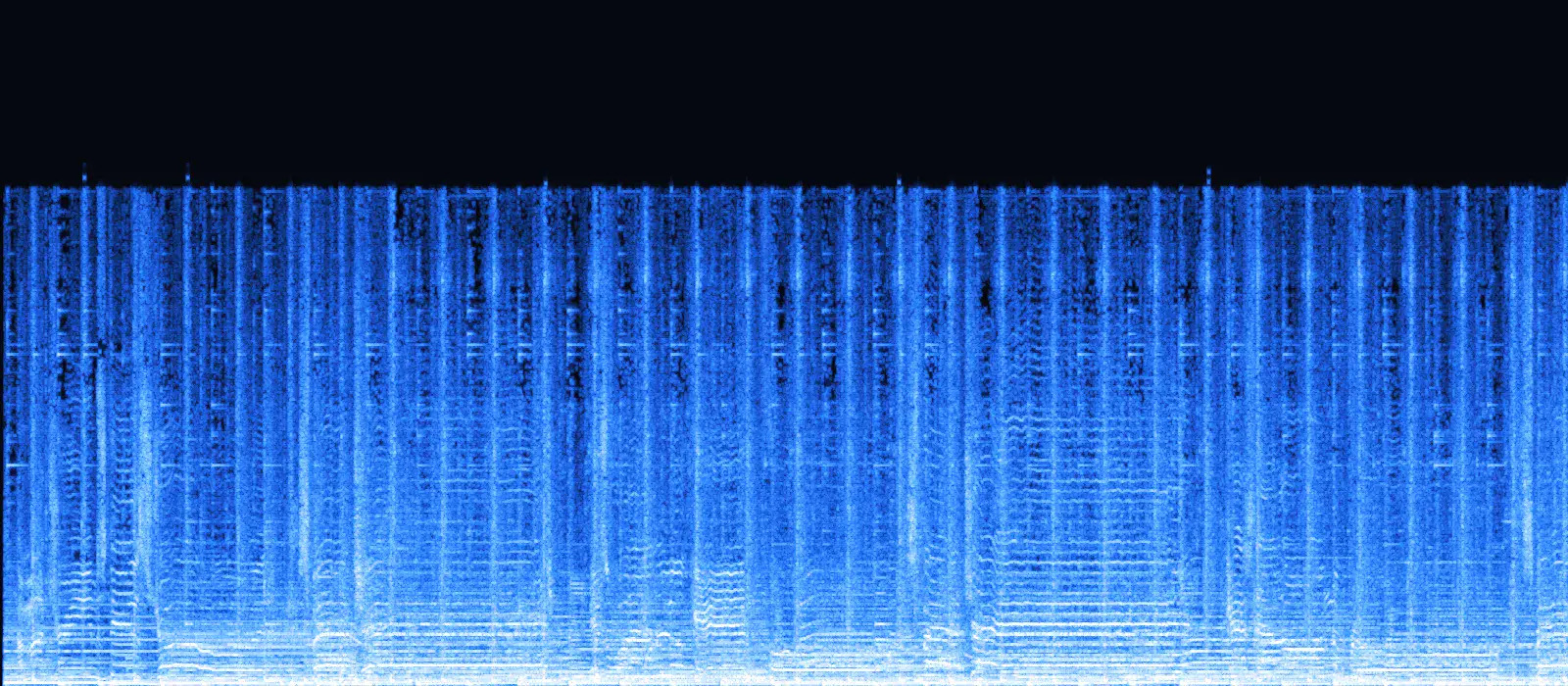
Spectrogram of the same song as a 128 kbps MP3 from this audio to MP3 converter, cut off near 16.5 kHz
FLAC sourceMP3 · 128 kbps

What a lower bitrate takes away

Drag the handle: on the left, the FLAC song; on the right, the same song as a 128 kbps MP3. The encoder drops content above about 16.5 kHz to fit the bitrate — that top band is what 192 and 320 kbps keep. (Our demo song itself started life as a 192 kbps file, so its own ceiling sits near 18.5 kHz.)

  • FLAC 16-bit
  • MP3 128 kbps
  • 44.1 kHz
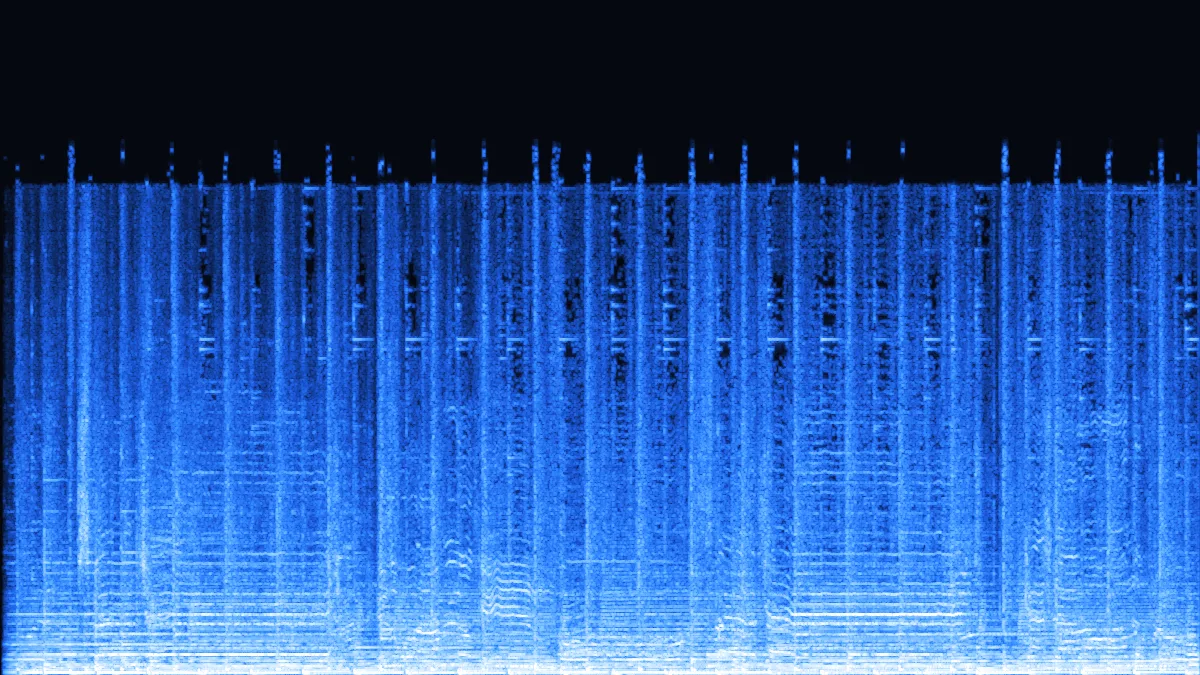
Spectrogram of a voice memo converted from M4A to a 128 kbps mono MP3M4A 369 KBMP3 481 KB

Voice memo: M4A to MP3

A phone voice memo (AAC in M4A) folded to mono at 128 kbps. The MP3 is a little bigger than the M4A — MP3 is the older, less efficient codec — but it opens in every transcription tool and mail app.

  • 128 kbps
  • Mono
  • 44.1 kHz
Spectrogram of a FLAC song converted to a 320 kbps MP3FLAC 2.4 MBMP3 801 KB

Lossless FLAC to 320 kbps · Pro

The best case for MP3: a lossless source at the top bitrate. The file shrinks to about a third of the FLAC and keeps everything the song actually contains.

  • 320 kbps
  • Stereo
  • 44.1 kHz
Spectrogram of an OGG Opus instrumental converted to a 192 kbps MP3OGG 402 KBMP3 721 KB

OGG Opus instrumental to 192 kbps

Opus decodes at 48 kHz; with the sample rate on Original the MP3 stays at 48 kHz. 192 kbps gives the second lossy generation enough room to sound like the first.

  • 192 kbps
  • Stereo
  • 48 kHz
Spectrogram of the soundtrack extracted from an MP4 video and saved as MP3MP4 247 KBMP3 361 KB

Audio from an MP4 video

Only the soundtrack of this 15-second clip is decoded; the picture is ignored. Handy for keeping the audio of a screen recording, lecture or phone video.

  • 192 kbps
  • Stereo
  • 44.1 kHz

How to

How to convert audio to MP3 in three steps

It works the same on Windows, Mac, Linux, Android and iPhone — your browser does all the work.

  1. Add your files

    Drop audio or video files onto the window, or browse. Up to 3 at once (100 with Pro), each up to 50 MB and 10 minutes (500 MB / 2 hours with Pro) — mixed formats are fine.

  2. Pick a bitrate

    192 kbps for everyday music, 128 kbps for speech; with Pro, 320 kbps for lossless sources. Keep the sample rate or set 44.1 / 48 kHz.

  3. Download the MP3s

    Files convert in turn with their own progress bar. Play any result and save it — or, with Pro, take the whole batch as one ZIP.

Settings

Every MP3 setting, explained

Four choices cover almost every case. The defaults — 192 kbps, original sample rate, original channels — are right for most music.

Bitrate: how much data per second

128 kbps is small and fine for voices. 192 kbps sounds transparent to most people on most music. 256–320 kbps (Pro) leaves headroom for careful listening or a lossless source. Every file is constant bitrate, so its size is predictable.
  • 128
  • 192
  • 256
  • 320 kbps
  • CBR

Sample rate

Original keeps the source rate when MP3 allows it (32, 44.1 or 48 kHz). Higher rates such as 96 kHz come down to 48 or 44.1 kHz, the MP3 maximum.
  • 32k
  • 44.1k
  • 48k

Mono for speech

At a fixed bitrate a mono MP3 is the same size, but all the data goes to one channel — cleaner speech for interviews and lectures.
  • L + R → M

Batch queue + ZIP (Pro)

Files convert one after another so the page stays responsive — 3 per batch free, 100 with Pro, which also zips them. Change a setting later and one button re-runs the finished files.
  • 3 × 50 MB
  • Pro 100 × 500 MB · .zip

Video in, MP3 out

Drop an MP4, MOV or WebM and only its audio track is decoded and encoded.
  • MP4
  • MOV
  • WebM

Private by design

Your browser's audio engine decodes, a background worker encodes. No server ever sees the file.
  • 0 uploads

Use cases

When you need an MP3

MP3 is rarely the best-sounding format for its size any more — it's the one that plays everywhere. These are the moments that still call for it.

Interview at a bright table recorded on a smartphone
  • M4A → MP3
  • 128 kbps

Voice memos and interviews

iPhones record M4A and many Android phones AAC or AMR. As MP3 they open in any transcription service, mail app or editor.

Driver's hand adjusting a car stereo on the dashboard
  • MP3 · 192 kbps

Car stereos and USB sticks

Plenty of head units and older players read MP3 only. Convert a folder in batches — or in one go as a ZIP with Pro — and copy the files to a stick.

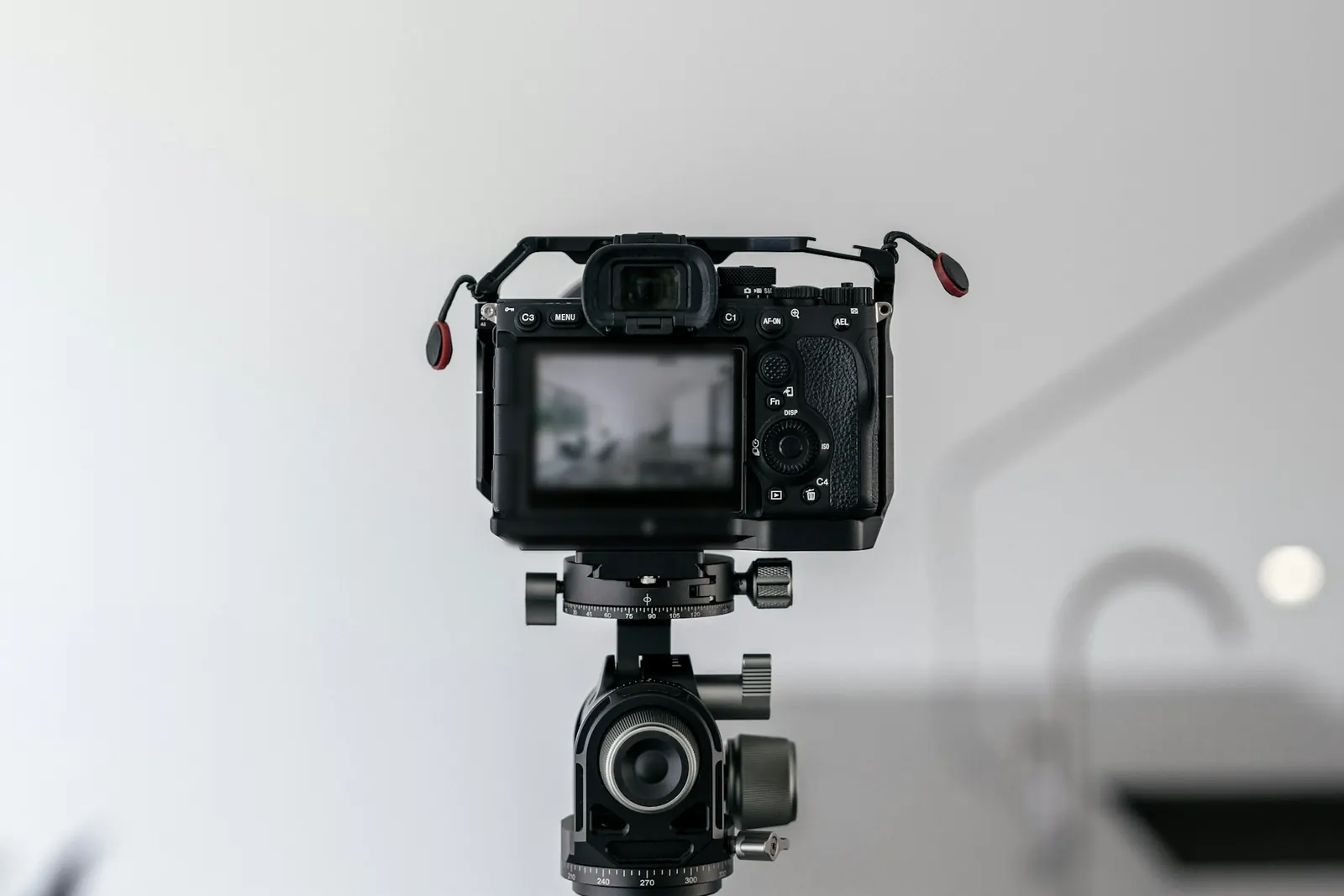
Mirrorless camera on a tripod ready to record video
  • MP4 → MP3

Sound from a video

Keep the audio of a camera clip, phone video or screen recording as an MP3 for a podcast, notes or a backing track.

Empty university lecture hall with tiered seats
  • WAV → MP3
  • ≈ 57 MB / h

Lectures and meetings

An hour of 128 kbps mono MP3 is about 57 MB — roughly a tenth of the same hour as a CD-quality WAV.

Commuter on a bus listening to music with wired earbuds
  • MP3
  • 44.1 kHz

Everyday listening

Phones, browsers, smart speakers, game consoles, cars: when you don't know where a file will end up, MP3 is the safe bet.

Formats

Audio file converter: what you can turn into MP3

Decoding uses the audio engine built into your browser, so what opens depends a little on which browser you use. Here is what to expect.

Source formats you can convert to MP3
FormatUsually fromTypeOpens hereTip
M4A · AACiPhone Voice Memos, music stores, downloadsLossyAll modern browsersUse 192 kbps or more — it's a second lossy pass
WAV · AIFFRecorders, DAWs, ripped CDsLosslessWAV everywhere · AIFF in SafariThe best possible source for an MP3
FLAC · ALACMusic stores, archivesLosslessFLAC everywhere · ALAC in Safari320 kbps keeps the most
OGG · OpusVoice notes, games, the webLossyChrome, Edge, Firefox; Safari variesOpus is 48 kHz — keep Original or pick 48k
MP4 · MOV · WebMPhones, cameras, screen recordersVideoAudio track, when the codec is AAC or OpusOnly the sound is kept
WMA · AMROld Windows PCs, old phonesLossyNo — browsers can't decode themUse a desktop converter for these
If one browser refuses a file, try it in Chrome — it ships the widest set of audio decoders.

One audio file converter, three outputs

The tabs at the top of the window turn this into an audio file converter for WAV and FLAC too — same queue, same settings panel, same batch download.

Bit depth, sample rates and FLAC compression are explained in depth on the MP3 to WAV and MP3 to FLAC pages.

MP3

128–320 kbps

WAV

16 / 24-bit

FLAC

Balanced

Smartphone with white wired earbuds on a concrete table

Why MP3 still matters

AAC and Opus sound better at the same size, but MP3 is the one format every phone, car, browser and speaker of the last 25 years can play. Its last patents expired in 2017, so anyone can use it freely.

MP3 bitrate guide
BitratePer stereo minuteSounds likeUse it for
128 kbps0.96 MBFine for speech; cymbals can swishPodcasts, lectures, voice memos
192 kbps1.44 MBTransparent for most people on most musicEveryday music, car, phone
256 kbps1.92 MBHard to tell from the CDMusic libraries
320 kbps2.40 MBMP3's ceilingLossless sources, DJ sets

Lossy to lossy costs a little

Each time a lossy file — M4A, OGG, MP3 — is decoded and encoded again, the new encoder throws away a bit more. One conversion at 192 kbps or above is rarely audible; ten in a row are. Keep the originals.

A higher bitrate can't add detail

Re-encoding a 128 kbps file at 320 kbps makes it 2.5 times bigger, not better. The tool shows each file's source bitrate so you can match it or go one step up.

FAQ

Audio to MP3 questions

Short answers about formats, quality and privacy.

Yes. There's no signup and no watermark; the free plan includes 10 downloads a day, and Pro has no daily limit. The conversion happens on your own device, so there is no per-file server cost to pass on.

No. Your browser decodes each file and a background worker on the same device encodes the MP3. The audio is never sent to a server, which also means large files don't wait on an upload.

192 kbps is the everyday default and sounds transparent to most listeners. Use 128 kbps for speech, and 256 or 320 kbps (Pro options) when the source is lossless (WAV, FLAC) or you want extra headroom. Going above the source's own bitrate won't improve it.

Yes. Drop an MP4, MOV or WebM file and only the audio track is converted. It works whenever your browser can decode the soundtrack — AAC and Opus almost always do. If a video refuses, try Chrome.

MP3 is lossy, so some data is always removed. From a lossless source at 192–320 kbps most people can't hear the difference. From another lossy file (M4A, OGG) you lose a little more, so pick a generous bitrate and keep the original.

Free converts up to 3 files per batch, each up to 50 MB and 10 minutes; Pro takes 100 files of up to 500 MB and 2 hours. They convert one after another; download them one by one (Pro can also save all of them as one ZIP), then clear the queue and start the next batch.

Free · no upload

Turn any audio into an MP3

Drop a file, pick a bitrate, download. Your audio never leaves this device.

  • No signup
  • No watermark
  • 3 files per batch · Pro 100

Free · no signup · no watermark · processed in your browser