Checked November 2026
Every step below was checked on 15 November 2026 against Apple Support's "Create a custom ringtone on your iPhone" and "Use tones and ringtones with your iPhone or iPad" pages, plus the Use as Ringtone action that arrived with iOS 26. Apple sometimes renames menus between updates — if a label looks slightly different, pick the closest match.
Pick your route
Most people asking "how do I make iPhone ringtones?" want one of three things: the quickest way on a current iPhone, a way that works without a computer on an older one, or a way to copy several tones from a Mac. Here is how the routes compare.
| Route | You need | Best for |
|---|---|---|
| Files app → Use as Ringtone | iOS 26 or later, MP3/M4A under 30 s | The fastest route on a current iPhone |
| GarageBand for iPhone | The free GarageBand app | Older iOS, or trimming on the phone |
| Finder (Mac) or iTunes (Windows) | An .m4r file and a cable | Adding several ringtones at once |
Whichever route you choose, step one is the same: a clean clip of 30 seconds or less.
Step 1: Cut a 30-second clip
Apple caps ringtones at 30 seconds. GarageBand offers to chop longer exports for you, and the Files action only appears for short clips — so trimming the song yourself is how you decide which 30 seconds play when the phone rings.
- 1
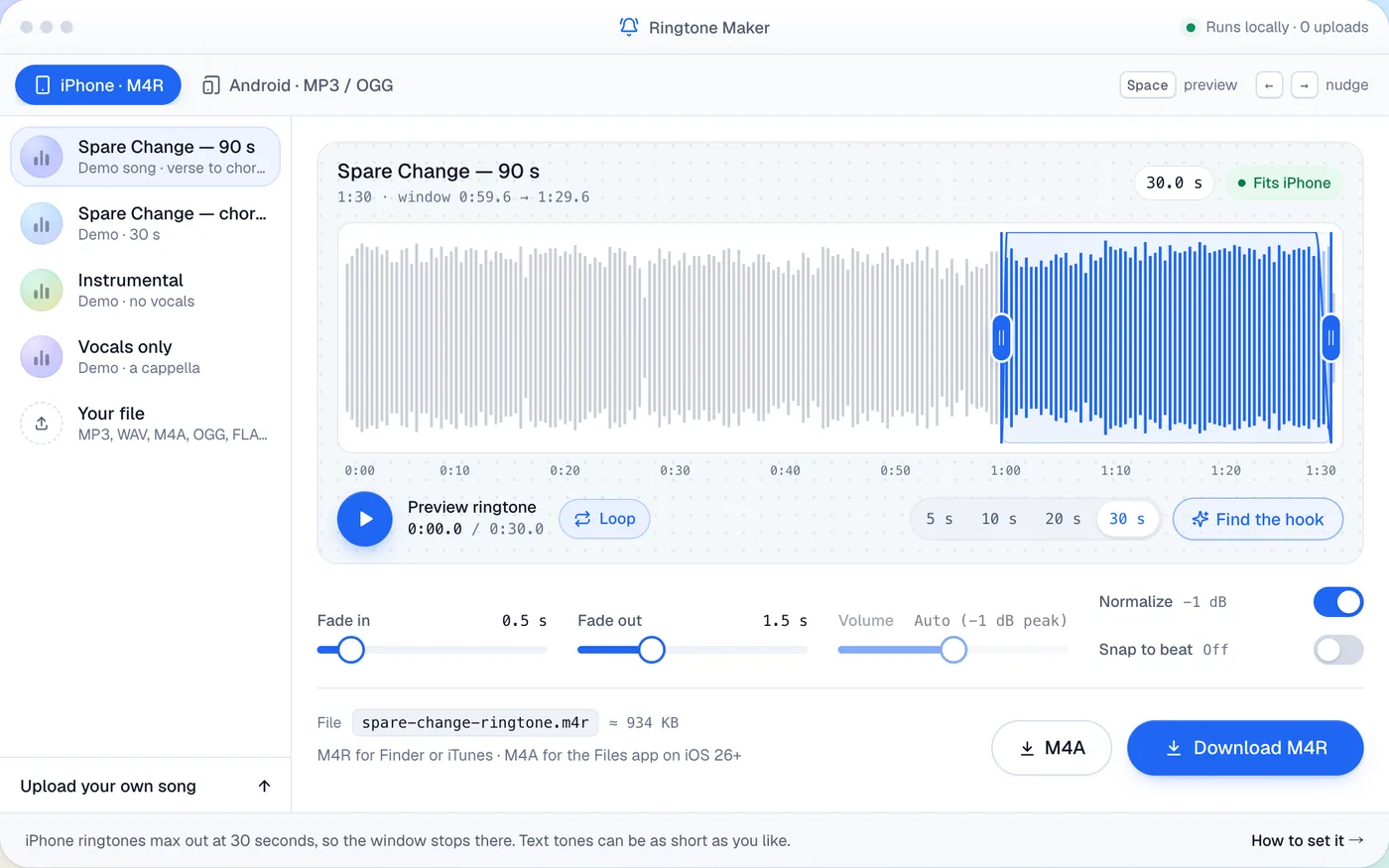
Open Ringtone Maker in any browser
Our Ringtone Maker works on the iPhone itself or on a computer. The song is processed on your device and never uploaded.
- 2
Load a song you own
MP3, M4A, WAV, FLAC and OGG all work. Skip copy-protected streaming tracks — they can't leave their app.
- 3
Slide the selection onto the hook
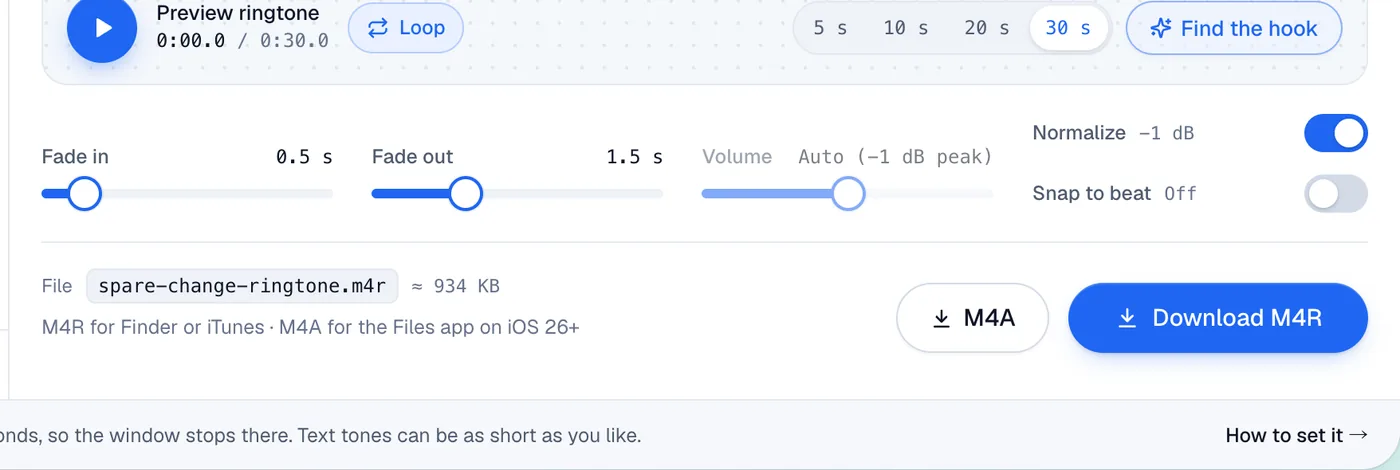
Start on the first beat of the chorus or riff so the song is recognisable within one ring — or tap Find the hook and let the tool jump to the chorus. Aim for 20–29 seconds.
- 4
Add short fades and export
A half-second fade-in removes the click at the start; a two-second fade-out makes the loop gentle. Export M4R for a Mac or PC, or M4A for the Files app route (an MP3 works there too).
How to make a ringtone on iPhone with the Files app
If you're on iOS 26 or later, this is the quickest way to make a ringtone on iPhone — no extra app and no computer.
- 1
Save the clip to Files
Download it in Safari (it lands in Files → Downloads) or AirDrop it from a Mac and choose Save to Files. It must be stored on the iPhone: if you see a cloud icon next to the name, tap the file once to download it.
- 2
Touch and hold the file, then tap Share
The share sheet opens with apps on top and actions below.
- 3
Scroll down and tap Use as Ringtone
iOS sets the clip as your ringtone straight away and opens Settings → Sounds & Haptics → Ringtone with the new tone ticked.
No Use as Ringtone button?
It only shows for audio clips under 30 seconds on iOS 26 or later. Export a shorter M4A or MP3, download the file from iCloud first, or use the GarageBand route below.
How to make a custom ringtone on iPhone with GarageBand
GarageBand is Apple's free music app and the route Apple Support documents. It works on older iOS versions and doesn't need a computer, which makes it the classic answer to how to make a custom ringtone on iPhone.
- 1
Start an empty project
Install GarageBand from the App Store, touch and hold its icon, then tap Create New Audio Recording.
- 2
Bring in your clip
Tap the Tracks button, tap the instrument icon on the left to select the track, then tap the Loops browser button. Choose Files, then Browse items from the Files app, and find your clip.
- 3
Drag it to the very start
Touch and hold the file and drag it all the way left in the Tracks view, so no silence plays before the audio. Drag the region's edges if you still need to trim.
- 4
Share it as a ringtone
Tap the navigation button, then My Songs. Tap More → Select, pick the project, then Share → Ringtone. Name it and tap Export. If it runs over 30 seconds, tap Continue and GarageBand shortens it.
- 5
Assign it
Tap Use sound as and choose Standard Ringtone, Standard Text Tone or Assign to contact — or tap Done to decide later.
GarageBand dims songs that are copy-protected or not downloaded. That's why Apple Music tracks can't become ringtones, even with a subscription.
Copy .m4r files from a Mac or PC
Making a whole batch — one tone per family member, say? A cable can be quicker. Export each clip as M4R, connect the iPhone, select it in the Finder sidebar and drag the .m4r files onto its General tab. On Windows, drag them onto the iPhone in the iTunes sidebar. Apple's sync guide doesn't list this method — it's a long-standing workaround confirmed by users on Apple Community — so treat it as a fallback if the phone-only routes don't suit you.
Set it as your ringtone, or give one contact their own
- For every call: Settings → Sounds & Haptics → Ringtone, then tap your tone. Custom tones sit at the top of the list.
- For one person: open Contacts, tap the name, tap Edit, then Ringtone, choose the tone and tap Done.
- For messages: the same Settings screen has Text Tone — a 1–3 second clip works best there.
What makes a ringtone sound good
| Setting | Recommended | Why |
|---|---|---|
| Length | 20–29 s | Under Apple's 30-second cap, and it loops before it gets tiresome |
| Start point | First beat of the hook | Recognisable within one ring |
| Fade-in | 0.3–1 s | No click when playback starts |
| Fade-out | 1.5–3 s | A smooth jump back to the start of the loop |
| Level | Peaks around −1 dBFS | Loud on a small speaker without distorting |
| Format | MP3/M4A (Files) · M4R (computer) | What each route accepts |
Phone speakers barely reproduce deep bass, so a section built only on sub-bass turns quiet as a ringtone. Test the clip on the phone's speaker, not just headphones; if it's still too soft, raise it with Make Audio Louder. Want something nobody else has? A slowed + reverb cut of the chorus makes a calm, dreamy ringtone.
Troubleshooting
| Problem | Fix |
|---|---|
| The song is greyed out in GarageBand | It's copy-protected or not downloaded. Use an audio file you own. |
| Use as Ringtone is missing | Check iOS 26 or later, under 30 seconds, MP3/M4A, stored on the phone. |
| The ringtone starts with silence | Trim the gap, or drag the region fully left in GarageBand. |
| A copied .m4r doesn't appear | Check the extension is .m4r and the clip is under 30 seconds, then drag it onto the General tab again. |
| It's too quiet | Pick a section with vocals or a lead melody, and raise the level before exporting. |
Making tones for an Android phone too? Our guide on how to make a custom ringtone covers Pixel, Samsung and other Android phones.