Checked November 2026
Android steps were checked on 15 November 2026 against Google's Pixel Phone Help ("Change volume, sound & vibrate settings") and Samsung's Galaxy support pages; the iPhone steps against Apple Support. Phone makers rename menus between updates, so if a label on your phone differs slightly, look for the closest match.
What every custom ringtone needs
Whatever phone you have, a ringtone is simply a short audio file saved on the phone. The rules differ a little between the two systems:
| Android | iPhone | |
|---|---|---|
| Length | Any; 20–30 s recommended | 30 s maximum |
| Formats | MP3, M4A, OGG, WAV | M4R from a computer; MP3/M4A via Files (iOS 26+) |
| Where the file lives | Internal storage — Downloads or Ringtones folder | The Files app or GarageBand |
| Where you set it | Settings → Sound & vibration → Ringtone | Settings → Sounds & Haptics → Ringtone |
Step 1: Choose the part of the song
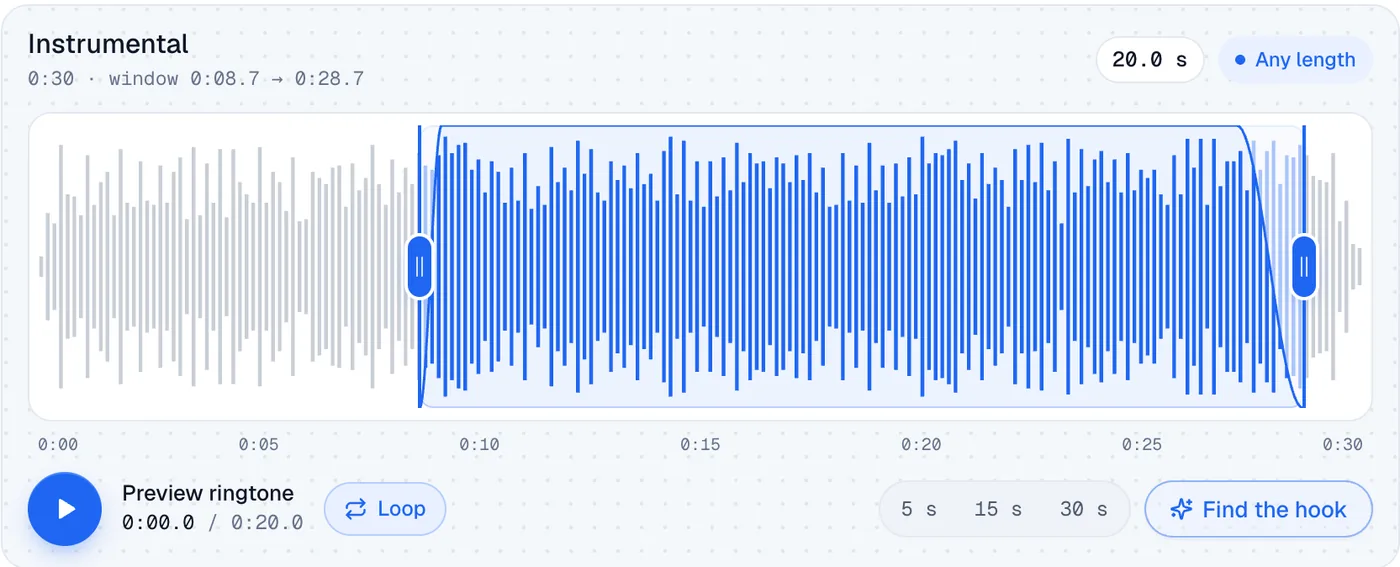
Knowing how to make a song your ringtone is mostly about choosing the right seconds. A ringtone gets one or two rings to be recognised, so start on the hook — the chorus line, a riff, a drop — not the intro. Favour a part with mid-range energy such as vocals, guitar or a synth lead: phone speakers barely reproduce bass, so a bass-heavy section sounds thin.
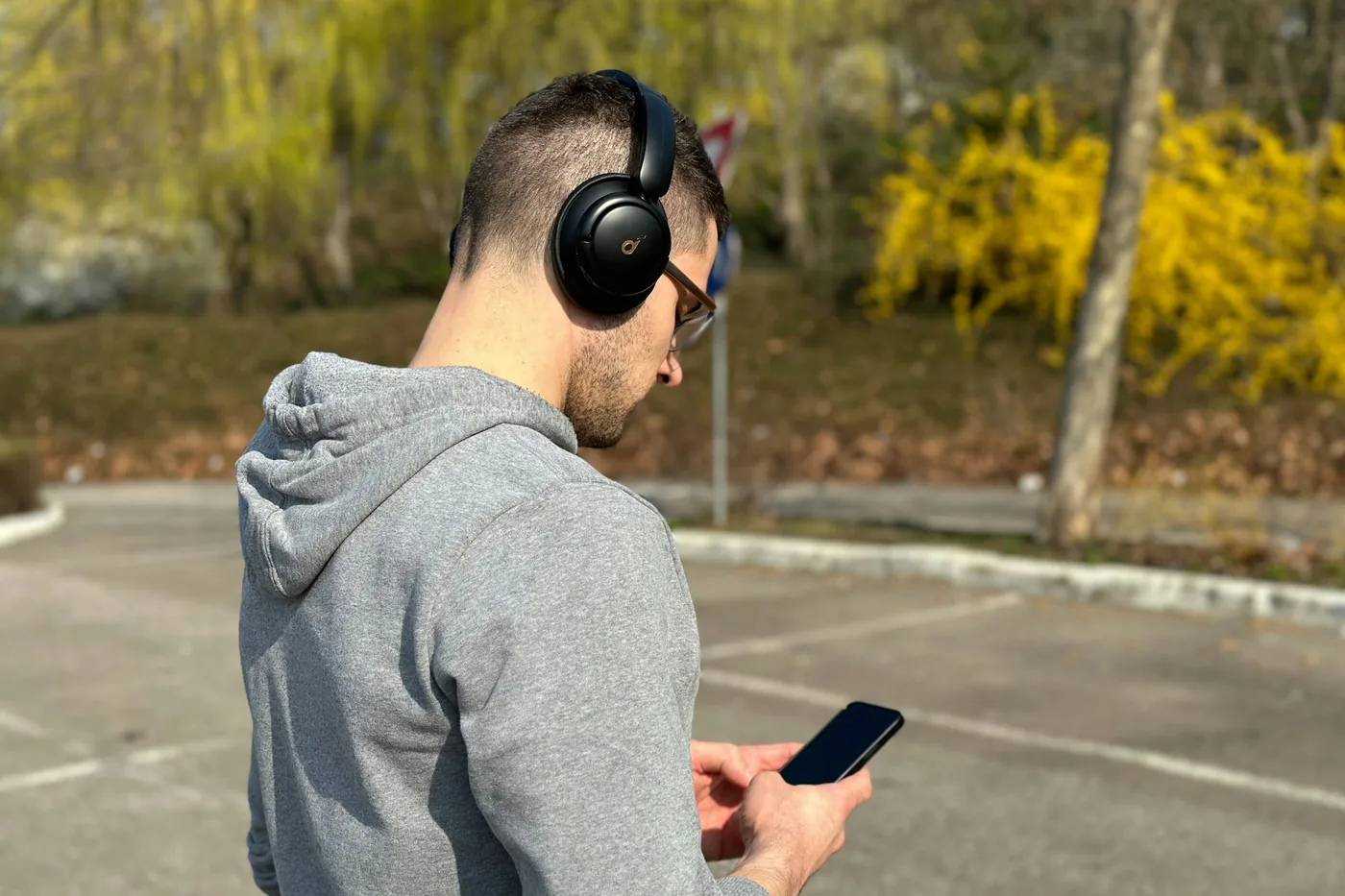
Use a song you have as a file: a purchased download, your own recording or a royalty-free track. Songs streamed from Spotify, Apple Music or YouTube Music are copy-protected and can't be set as ringtones.
Step 2: Trim, fade and export
- 1
Open Ringtone Maker
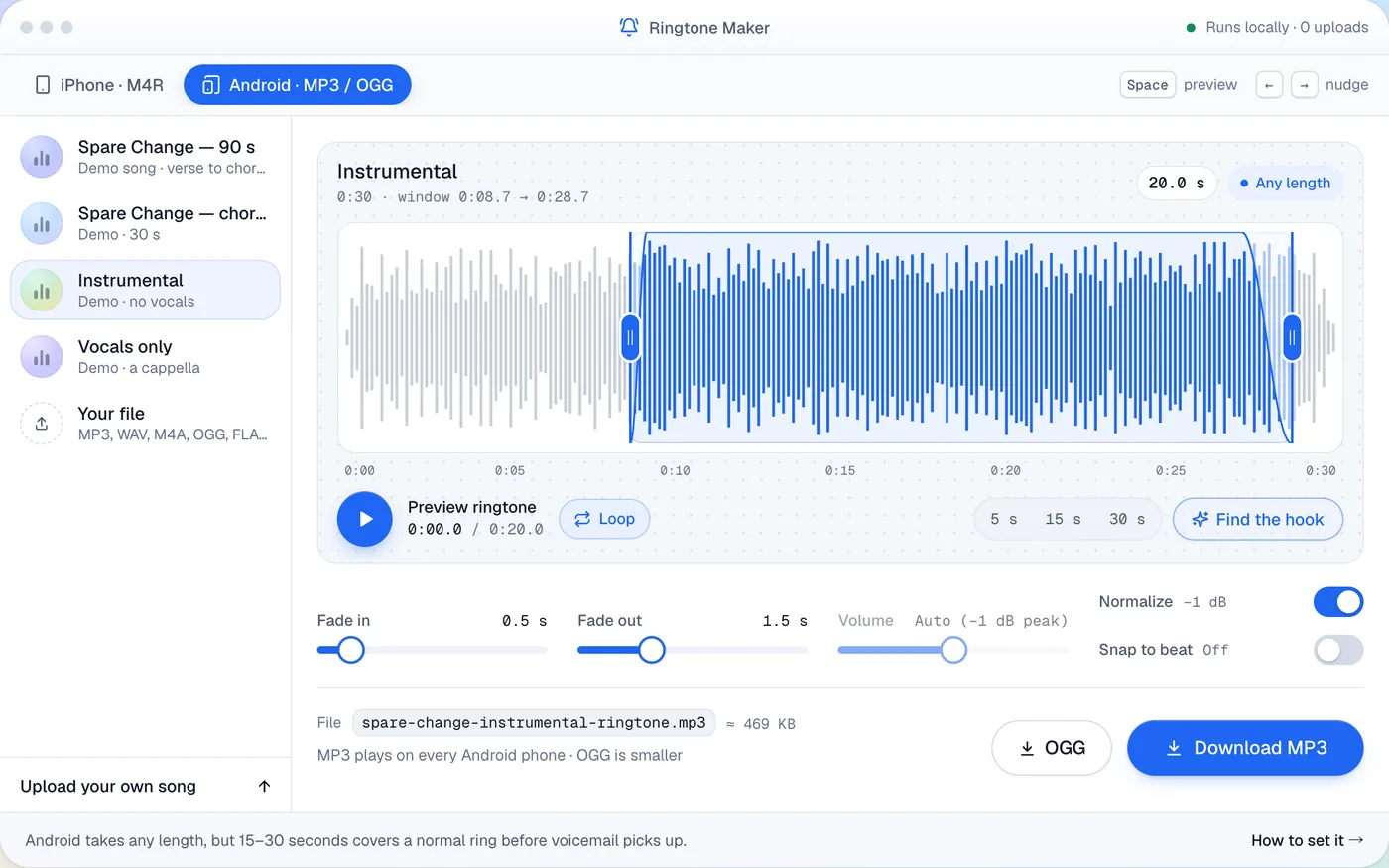
Ringtone Maker runs in the browser on your phone or computer — nothing to install and nothing uploaded.
- 2
Load the song and select the hook
Drag the selection to the moment you noted and keep it to 20–30 seconds.
- 3
Fade in and out
About 0.5 seconds in and 2 seconds out, so the ringtone doesn't click or cut off abruptly when it loops.
- 4
Export the right format
MP3 (or the smaller OGG) for Android. For iPhone, M4R if you'll copy it from a computer, or M4A for the Files app.
The same steps make shorter sounds too: a 1–3 second clip works as a notification or alarm tone, and a voice memo — a child's laugh, a friend's catchphrase — makes a custom ringtone for one contact. If your clip isn't an MP3 yet, Audio to MP3 converts M4A, WAV, FLAC or OGG in the browser.
Step 3 on Android: set the ringtone
First get the file into the phone's internal storage: download it on the phone, copy it over USB, or send it from another device with Quick Share. A file that only lives in a cloud drive won't appear in the ringtone picker.
Google Pixel and stock Android
- 1
Open the ringtone settings
Settings → Sound & vibration → Ringtone (older versions call it Phone ringtone).
- 2
Add your own sound
Tap My Sounds, then the + button.
- 3
Pick the file and save
Open the menu, choose Downloads (or the folder you used), tap your clip, then tap Save.
Samsung Galaxy (One UI)
- 1
Open the ringtone list
Settings → Sounds and vibration → Ringtone. On a dual-SIM phone, pick SIM 1 or SIM 2.
- 2
Tap + to add a sound
Allow access for the sound picker if asked.
- 3
Choose the clip
Find it under Tracks — or Folders if it isn't listed — then tap Done.
Samsung's picker also has a Play selected highlights only switch that plays an automatically chosen part of a full song. Turn it off for a clip you've already trimmed, so it plays from your chosen start.
Other Android phones
Xiaomi, OnePlus, Motorola, OPPO and other brands keep the ringtone under Settings → Sound (& vibration) → Ringtone, usually with an option such as My Sounds, Choose local ringtone or a + button. If your file doesn't appear, open your file manager, move the clip into the Ringtones folder of internal storage and look again. Many file managers also offer Set as ringtone in a file's ⋮ menu.
Give one contact their own ringtone
Open Contacts, tap the person, tap ⋮ (More) → Set ringtone and choose your clip. On a Samsung Galaxy it's ⋮ → Change ringtone/vibration → Ringtone. The contact has to be saved on the phone or your Google account — contacts stored on the SIM can't hold a ringtone.

Step 3 on iPhone: the short version
- iOS 26 or later: save the clip (MP3 or M4A, under 30 seconds) in Files, touch and hold it → Share → Use as Ringtone.
- Older iOS: import the clip into the free GarageBand app and choose Share → Ringtone.
- One contact: Contacts → the name → Edit → Ringtone.
Our step-by-step guide on how to make iPhone ringtones covers each route, plus copying .m4r files from a computer and fixes when something doesn't show up.
Ideas for a ringtone nobody else has
| Idea | How |
|---|---|
| The chorus of your favourite song | Trim the hook to 20–30 s, fades on |
| A slowed + reverb version | Slow it to about 85 % with reverb in the home studio, then trim |
| A nightcore cut | Speed it up with Nightcore Maker for a bright, urgent ring |
| Your own voice | Record a voice memo and trim 3–10 s for one contact |
| A different tone per person | Several short clips, each assigned in Contacts |
Fixes for common problems
| Problem | Fix |
|---|---|
| The file isn't in the ringtone list | Make sure it's downloaded, not cloud-only; move it to the Ringtones folder; reopen the picker or restart the phone. |
| It plays from the middle of the song | Turn off Samsung's highlight option, or set a trimmed clip instead of the full song. |
| It's too quiet | Choose a section with vocals or a lead, and raise it with Make Audio Louder. |
| A contact's ringtone is ignored | The contact is saved on the SIM — move it to the phone or your Google account. |
| The ringtone cuts off with a click | Add a 1–2 second fade-out before exporting. |