Checked November 2026
Menu paths below match Spotify's Equalizer help page and the current apps as of 15 November 2026. Spotify redesigns its settings from time to time, so labels can move a little.
How to boost bass on Spotify, step by step
Spotify's Equalizer has six fixed bands (60 Hz, 150 Hz, 400 Hz, 1 kHz, 2.4 kHz and 15 kHz) plus presets, including one called Bass Booster. The bass lives in the first two bands.
iPhone and iPad
- 1
Open settings
Tap your profile picture at the top, then Settings and privacy.
- 2
Go to Playback
Tap Playback and switch Equalizer on.
- 3
Boost the low end
Pick the Bass Booster preset, or drag the 60 Hz and 150 Hz dots up. Changes apply while the music plays, so tweak by ear.
Android
Tap your profile picture → Settings and privacy → Playback, then turn on Equalizer under Listening controls. On some phones (Samsung, for example) this opens the phone's built-in equalizer instead of Spotify's. That's fine, but the setting then changes the sound of every app, not just Spotify.
Windows and Mac
Click your profile picture → Settings, scroll to Playback and switch Equalizer on, then choose a preset or drag the dots. If the switch is missing, update the app first; some users have reported it missing in certain desktop versions.
Leave Normalize volume on
Spotify's Normalize volume turns loud masters down (Normal targets −14 LUFS). That spare headroom gives your bass boost room before it distorts. The Loud setting adds a limiter that can squash the extra low end.
Best Spotify EQ settings for bass
Presets are a blunt tool: Bass Booster applies one fixed shape to every song, and on some tracks it makes vocals sound thick. These curves are our starting points. Set the dots, play a song you know well, then adjust 1 dB at a time.
| Curve | 60 Hz | 150 Hz | 400 Hz | 1 kHz | 2.4 kHz | 15 kHz | Best for |
|---|---|---|---|---|---|---|---|
| Gentle warmth | +3 | +2 | 0 | 0 | 0 | 0 | Earbuds, acoustic, podcasts with music |
Punchy bass (start here) | +5 | +3 | −1 | 0 | +1 | +1 | Pop and hip-hop on headphones |
| Sub-bass rumble | +6 | +2 | −2 | 0 | 0 | 0 | 808s, trap, EDM; good headphones or car |
| Bass without mud | +4 | +2 | −3 | −1 | +2 | +2 | Busy rock and band mixes |
| Small speakers | 0 | +4 | +1 | 0 | +1 | 0 | Phone and laptop speakers |
Why these shapes work:
- 60 Hz is the thump you feel: kick drums, 808 tails, sub-bass. It needs headphones or a real woofer to come through.
- 150 Hz is the bass you hear: the body of a bass guitar and the punch of a kick on small speakers. Phone speakers reproduce very little below roughly 150 Hz, so boosting 60 Hz there only wastes headroom.
- 400 Hz is where mud builds up. Pulling it down a little makes the boosted bass sound clearer, not just louder.
- Lift 2.4 kHz and 15 kHz a touch so vocals and cymbals don't sink behind the extra low end.
Limits of Spotify's equalizer
Spotify's EQ is good for quick changes. It can't do everything:
- Six fixed bands, no input gain. You can't target the exact frequency a song needs, and big boosts on already-loud masters can clip.
- Per device, per app. Settings don't sync to your other phones or computers, and they're gone if you reinstall.
- Not over Spotify Connect. When you play on a smart speaker, TV or console from your phone, audio settings are locked.
- No web player EQ at open.spotify.com.
- Nothing to export. You hear the boost, but you can't save a bass-boosted file for a video, a DJ set or your car's USB stick.
How to bass boost a song file
When you own the file (a track you bought, your own mix, a royalty-free beat), you can bake the bass boost into it so it sounds the same everywhere. Our Bass Booster runs in your browser, so nothing is uploaded.
- 1
Drop in the song
Open the Bass Booster and add an MP3, WAV, M4A, OGG or FLAC file up to 100 MB, or try a demo stem.
- 2
Pick a preset
Start with Bass boosted (+8 dB around 100 Hz), or choose Headphones, Car audio, Phone speaker or 808 punch.
- 3
Compare while it plays
Press B to flip between the original and boosted mix, and keep the limiter on so peaks don't clip.
- 4
Download
Save as MP3 or WAV and play it on any device, with or without an EQ.
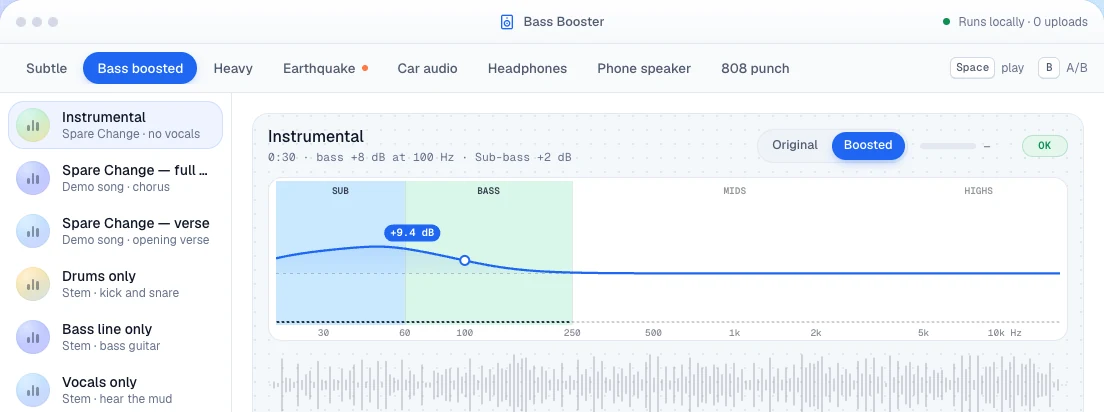
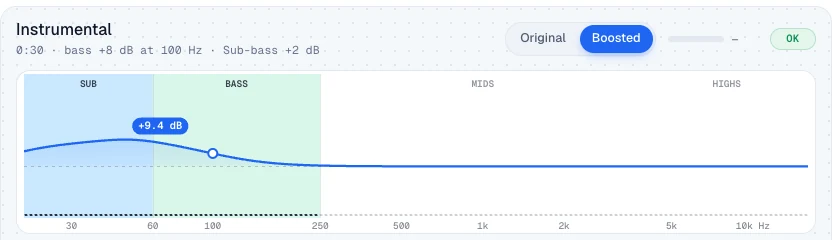
Here's what that boost does to the sound. Drag the handle: the bottom of the spectrogram, below about 250 Hz, gets brighter, which means louder. Everything above dims slightly, because the preset turns the output down 4 dB to leave headroom for the extra bass.
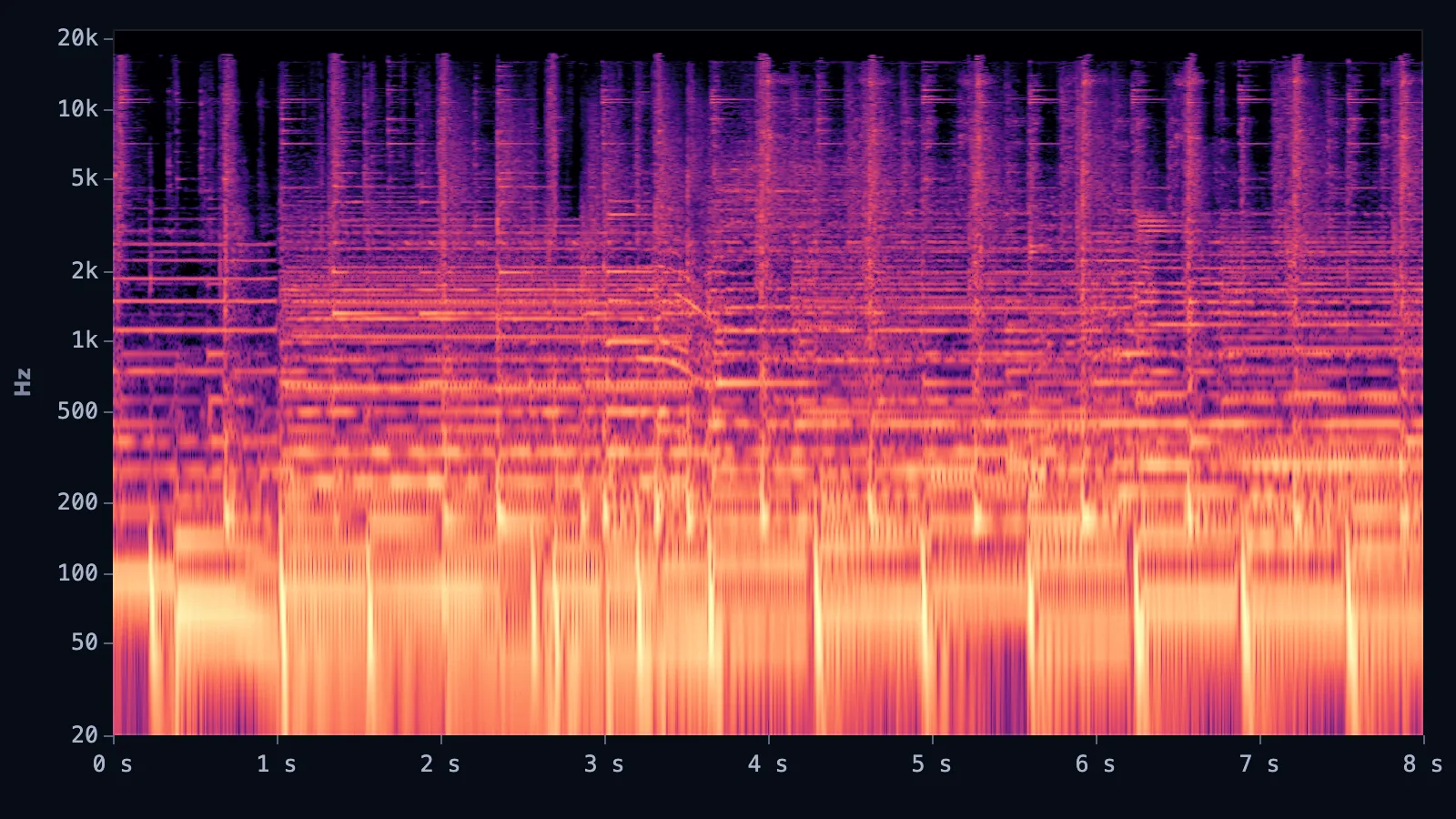
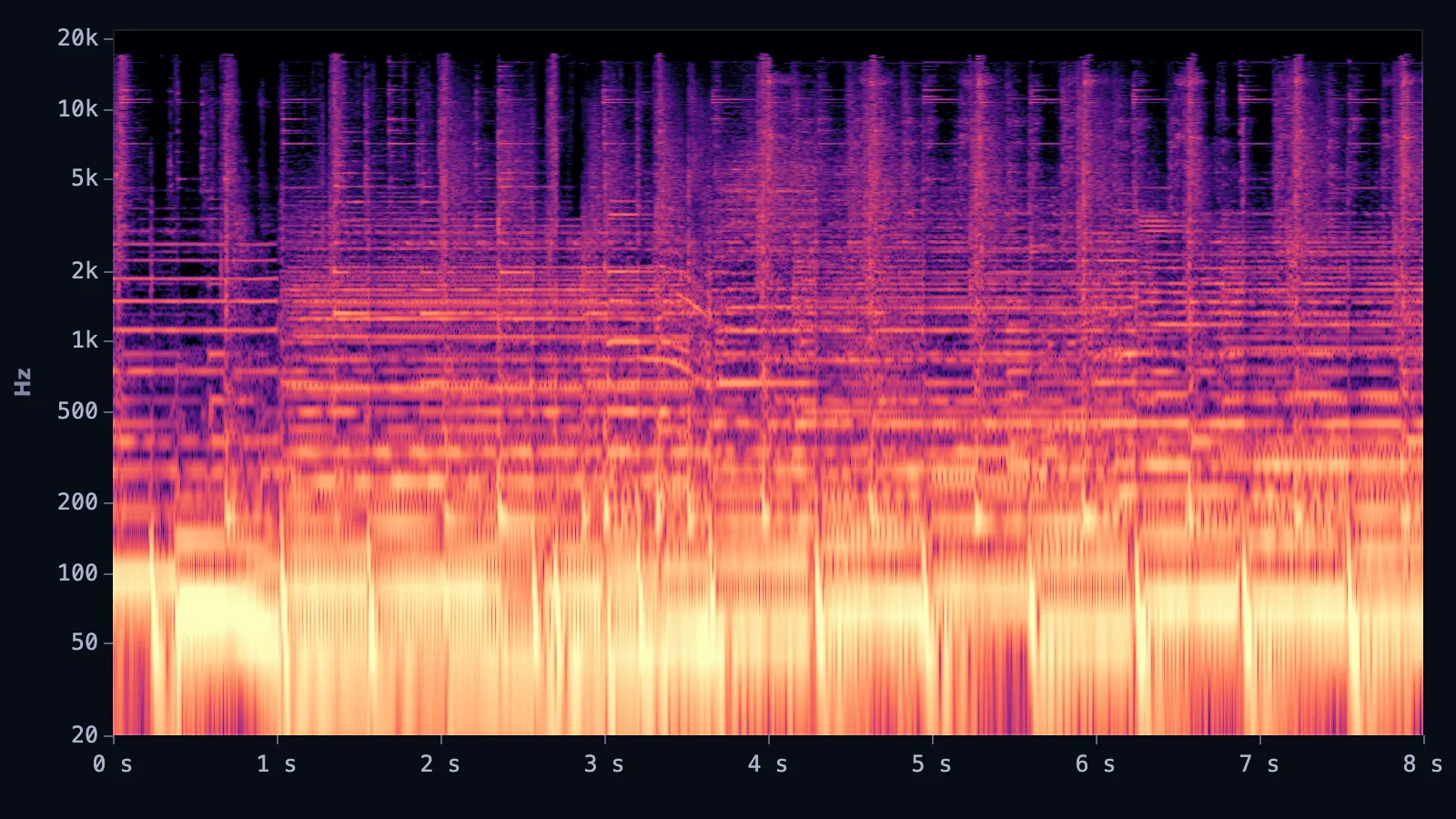
Same 8 seconds before and after the Bass boosted preset (+8 dB at 100 Hz, +2 dB sub, output −4 dB), drawn with our spectrogram engine.
For full control over the whole tone, not just the low end, the Online Equalizer gives you ten bands, presets and a live frequency curve.